Näytetään tekstit, joissa on tunniste Database. Näytä kaikki tekstit
torstai 6. joulukuuta 2012
Part 8. Creating listener with Netca
Creating listener with netca command.
(note: I accidentally deleted this page in blogger and there seems to be no way to recover deleted pages so I had to re-create it again...)
The netca command is installed to the bin directory where the db software is. In my environment it is at:
/u01/app/oracle/product/11.2.0/dbhome_1/bin
You need to be as user oracle and at the root directory run the command:
#source oraenv
This will set necessary environment variables for you.
I ran netca command and got a fairly strange error message.
[oracle@localhost database]$ cd /u01/app/oracle/product/11.2.0/dbhome_1/bin/
[oracle@localhost bin]$ ./netca
Oracle Net Services Configuration:
#
# An unexpected error has been detected by HotSpot Virtual Machine:
#
# SIGSEGV (0xb) at pc=0x00002aaab70349f1, pid=12779, tid=47281788116640
#
# Java VM: Java HotSpot(TM) 64-Bit Server VM (1.5.0_17-b03 mixed mode)
# Problematic frame:
# C [libclntsh.so.11.1+0x62a9f1] snlinGetAddrInfo+0x1b1
#
# An error report file with more information is saved as hs_err_pid12779.log
#
# If you would like to submit a bug report, please visit:
# http://java.sun.com/webapps/bugreport/crash.jsp
#
./netca: line 178: 12779 Aborted $JRE $JRE_OPTIONS -classpath $CLASSPATH oracle.net.ca.NetCA $*
[oracle@localhost bin]$
Finally after googling around I solved the problem. It seemed that my machine that I got from a premade image had no hostname. Don’t really know why not, but I added hostname to file in /etc/sysconfig/network
NETWORKING=yes
NETWORKING_IPV6=yes
NISDOMAIN=eelinnis.emea.nsn-net.net
NOZEROCONF=yes
HOSTNAME=soaserver2
And I added it to the /etc/hosts file. I called my machine soaserver.
# Do not remove the following line, or various programs
# that require network functionality will fail.
127.0.0.1 localhost.localdomain localhost soaserver.localdomain soaserver
::1 localhost6.localdomain6 localhost6
After these changes I needed to reboot for them to take effect.
#reboot After this netca worked and created the listener process for me
Other snafus
I had at some point a typing error for the server name in /etc/hosts. This resulted in a cryptic message where netca told that the port 1521 is already in use and listener will not work. When the hostname was corrected, everything worked perfectly.
keskiviikko 31. lokakuuta 2012
Simplified automated Oracle database startup script (updated)
Simplified Oracle database startup script
In the previous post I described what are the generic steps of creating a linux service and how to have that service automatically start when the machine boots up. The same post contains the script for automatically starting Oracle DB at server startup.
I have now simplified the script. In the original post of this article I had removed the use of external lock files completely and but used netstat to check if the listener up or down and ps to check if the database processes are up and about.
This did not completely work as I had originally planned as I noticed later that lock files have deeper meaning with chkconfig. Namely if you do not have the /var/lock/subsys/oracle file the service will not be automatically shut down as the system changes between run levels when the whole server is shut down. So after all you need the lock files in the end. You can see the changed bits in red colour below.
Here is the script in its current format:
#!/bin/bash
#
#
Run level script to start Oracle DB services
#
--------------------------------------------
#
chkconfig: 35 91 18
#
description: Oracle DB server
.
/etc/init.d/functions
OLD_PATH=$PATH
export
ORACLE_SID=orcl
export
ORACLE_UNQNAME=$ORACLE_SID
export
ORAENV_ASK="NO"
export
PATH=/usr/local/bin:$PATH
source
/usr/local/bin/oraenv >/dev/null
export
PATH=$OLD_PATH
OUSER="oracle"
OPATH=$ORACLE_HOME
OPORT=1521
SRVNM="Oracle
DB server"
LOCKD=/var/lock/subsys
LOCKF=$LOCKD/oracle
case
"$1" in
start)
echo "$SRVNM:"
if [ -d $LOCKD ]; then
touch $LOCKF
fi
su - $OUSER -c "$OPATH/bin/dbstart $OPATH"
[ $? -eq 0 ] && success || failure
;;
stop)
echo "$SRVNM:"
su - $OUSER -c "$OPATH/bin/dbshut $OPATH"
if [ -e $LOCKF ]; then
rm -f $LOCKF
fi
[ $? -eq 0 ] && success || failure
;;
restart)
$0 stop
$0 start
;;
status)
echo "$SRVNM:"
netstat -tln | grep ":$OPORT " > /dev/null
[ $? -eq 0 ] && echo " LISTENER is running..." || echo
" LISTENER is stopped"
[ $(ps -ef | grep "^$OUSER.*ora_.*_$ORACLE_SID\$" | wc -l) -gt 1 ]
&& \
echo " Server is running..." || echo " Server is
stopped"
;;
*)
echo $"Usage: $0 {start|stop|status}"
exit 1
esac
exit 0
Note:
If you do not like the shorthand for if-statements in status command part:
[ $? -eq 0 ] && echo " LISTENER is running..." || echo " LISTENER is stopped"
[ $(ps -ef | grep "^$OUSER.*ora_.*_$ORACLE_SID\$" | wc -l) -gt 1 ] && \
echo " Server is running..." || echo " Server is stopped"
You can rewrite those parts in more readable but longer format with if statements like this:
if [ $? -eq 0 ]; then
echo " LISTENER is running..."
else
echo " LISTENER is stopped"
fi
if [ $(ps -ef | grep "^$OUSER.*ora_.*_$ORACLE_SID\$" | wc -l) -gt 1 ]; then
echo " Server $ORACLE_SID is running..."
else
echo " Server $ORACLE_SID is stopped"
fi
Automated purging of data (updated)
Automated purging of data
By default Oracle SOA Suite leaves into the database
(dehydration store) all the instances that have been executed successfully or
failed or aborted for one or the other reason. This means that over time the
database grows and in a busy production environment sooner or later you will run out of
allocated disk space. The natural solution is to allocate more space to the
database which ultimately leads to a situation where database if full and the disks have no free space and
then you are really starting to have serious fun.
In order to avoid this, I strongly recommended to schedule
the purge scripts of SOA Suite. You can see more instructions here:
It’s also a best practice to delete the archive logs of database (see Backing Up and Deleting Archived Redo Log
Files in Backup and Recovery Reference).
Updated:
Found via dear friend Mr. Google Marc Kelderman's SOA blog and the following resources on improving purging performance there. If you have issues with your purging strategy, you could take a look at these resources as they seem very good pointers:
http://orasoa.blogspot.fi/2011/07/purging-soa-suite-11g-extreme-edition.html
http://orasoa.blogspot.fi/2011/07/soa-11g-ps3ps4-significant-purging.html
http://orasoa.blogspot.fi/2011/09/purging-osb-report-data.html
perjantai 26. lokakuuta 2012
starting Oracle DB automatically at server startup
Starting Oracle database automatically at server startup
Once we have a running SOA Suite installation (in my case it is running on a eucalyptus based cloud), the next step to do is to create Linux services for automatically staring the database and the SOA environment at system boot. You may also decide not to do this as it perfectly sensible to start the DB and SOA domains only when you need.
Generic Guideline for creating a service for starting the database
First there is a need to understand how Linux services are created:
The following line that looks like a comment is actually very meaningful
# chkconfig: 35 90 12
The first number tells what run levels the service automatically starts up. The number 35 means run levels 3 and 5. On the same run levels the service will be shut down when the server is shutting down also.
"Runlevel" defines the state of the machine after boot.Redhat has the following run level:
0 Halt
1 Single-User mode
2 Multi-user mode console logins only (without networking)
3 Multi-User mode, console logins only
4 Not used/User-definable
5 Multi-User mode, with display manager as well as console logins (X11)
6 Reboot
More on runlevels at: http://en.wikipedia.org/wiki/Runlevel
The second number tells at when to start the service in the startup sequence. This number is actually used for sorting scripts when the system moves from run level to another and the services are started in sorted order. So the numbers for different services do not need to be sequential.
The last number tells that when the server is shut down, in what priority order it is shut down relative to other services (similar to previous number).
If you want to know what numbers to assign, you can go to directory /etc/rc.d/rc<level>.d so that you can see what priorities are already assigned to which service. This directory contains symbolic links to the actual service scripts. Files starting with S are startups scripts and files starting with K are stop scripts. The S-scripts are on the level where the service is started but the K-scripts on the level where they no longer are running.
In the script at near the top we source the script ‘functions’ from directory ‘/etc/init.d’. Sourcing is a way of executing scripts so that all environment variables and functions defined in the script will be available in the running shell. Normally when you execute a script, the shell starts a new process to run the script and when the script exists, the new process is terminated and all variables defined by it are deleted. There is a short-cut to source command ‘.’. The line . /etc/init.d/functions means that the shell reads in all commands from this file and executes them like a user had manually typed them in. The script defines a number of functions that are later used. The service script would run perfectly well without it but the functions there are needed to integrate the script to the bootup sequence that the new service will be shown nicely on the console when the machine boots (in other words you service will be visible and the console shows whether the service started fine or failed). The functions defined there are ‘success’ and ‘failure’.
When we start and stop the service, on the following line there is:
[ $? -eq 0 ] && success || failure
$? Is a variable referring to the exit code of the previously run command. If it 0, the command executed succssfully. The funny looking syntax on the line is actually an if-statement, you could equally well write it out as a normal if, but most service scripts use this alternate syntax. If it executed well, the function ‘success’ is next invoked and this outputs to the console OK message about the end result and if it failed, the function ‘failure’ is invoked.
#!/bin/bash
# chkconfig: 35 90 12
# description: myservice server
#
RETVAL=0;
LOCKD=/var/lock/subsys
LOCKF=$LOCKD/myservice
if [ -f /etc/init.d/functions ]; then
. /etc/init.d/functions
elif [ -f /etc/rc.d/init.d/functions ]; then
. /etc/rc.d/init.d/functions
else
exit 0
fi
start() {
echo –n “Starting <My Service>”
if [ -d $LOCKD ]; then
touch $LOCKF
fi
# Commands to start the service go here…
[ $? -eq 0 ] && success || failure
}
stop() {
echo –n “Stopping <My Service>”
# Commands to stop the service go here…
[ $? -eq 0 ] && success || failure
if [ -e $LOCKF ]; then
rm -f $LOCKF
fi
}
restart() {
stop
start
}
case “$1″ in
start)
start
;;
stop)
stop
;;
restart)
restart
;;
status)
echo -n "<My Service> "
if [ -e $LOCKF ]; then
echo "is running..."
else
echo "is stopped"
fi
;;
*)
echo $”Usage: $0 {start|stop|status|restart}”
exit 1
esac
exit $RETVAL
Oracle Database as Linux service
The script for running Oracle DB as a linux service is below. The main thing that you need to do to use this script, is to change the ORACLE_SID unless it is the default orcl. Also if the oracle user is anything different than oracle, then you’d have to change the environment variable OUSER but this would be quite rare. All the other environment variables should come from the oraenv-script.
One more thing to check is to make sure that there is a directory /var/lock/subsys. This should be by default but in the images I have been using in our eucalyptus cloud environment, there have been images that miss commonly available directories like /opt so it is always better to check in advance.
One final check is to look at /etc/oratab. The command dbstart (in the script ‘oracle’) is meant to be used during boot time and it will check if the database instance is allowed to be started at boot up. In the /etc/oratab file there may be ‘N’ at the row for the ORCL instance. It needs to be changed to ‘Y’ to allow starting that instance during boot time. Dbstart will start all instances in the oratab with the ‘Y’ set.
#!/bin/bash
#
# Run level script to start Oracle 11g services on RedHat Enterprise Linux (RHAS 4)
# --------------------------------------------------------------------
# chkconfig: 345 91 18
# description: Oracle 11g server
if [ -f /etc/init.d/functions ]; then
. /etc/init.d/functions
elif [ -f /etc/rc.d/init.d/functions ]; then
. /etc/rc.d/init.d/functions
else
exit 0
fi
OLD_PATH=$PATH
export ORACLE_SID=orcl
export ORACLE_UNQNAME=$ORACLE_SID
export ORAENV_ASK="NO"
export PATH=/usr/local/bin:$PATH
source /usr/local/bin/oraenv >/dev/null
export PATH=$OLD_PATH
OUSER="oracle"
OPATH=$ORACLE_HOME
SRVNM="Oracle 11g DB server"
LOCKD=/var/lock/subsys
LOCKF=$LOCKD/oracle
case "$1" in
start)
echo -n "$SRVNM:"
if [ -d $LOCKD ]; then
touch $LOCKF
fi
su - $OUSER -c "$OPATH/bin/dbstart $OPATH"
[ $? -eq 0 ] && success || failure
;;
stop)
echo -n "$SRVNM:"
su - $OUSER -c "$OPATH/bin/dbshut $OPATH"
[ $? -eq 0 ] && success || failure
if [ -e $LOCKF ]; then
rm -f $LOCKF
fi
;;
restart)
$0 stop
$0 start
;;
status)
echo -n "$SRVNM "
if [ -e $LOCKF ]; then
echo "is running..."
else
echo "is stopped"
fi
;;
*)
echo $"Usage: $0 {start|stop|restart|status}"
exit 1
esac
exit 0
When everything is ready (you have checked the parameters and copied the oracle script to /etc/init.d and given it access and execute permissions), you can start the database (service oracle start) and shut it down with (service oracle stop).
One more thing is starting of db console that you may find useful. The following scripts do it. You can also make these scripts into a service if you like in the similar manner as above.
#cat startDBConsole.sh
#!/bin/bash
ORAENV_ASK=NO
ORACLE_SID=orcl
source oraenv
emctl start dbconsole
emctl status dbconsole
# cat stopDBConsole.sh
#!/bin/bash
ORAENV_ASK=NO
ORACLE_SID=orcl
source oraenv
emctl stop dbconsole
emctl status dbconsole
#
What is not ideal in this solution is that only the root can start and stop the service.
What is still missing is a piece of code to automatically start the SOA Suite when the machine boots up or to shut it down when the machine is closed. That code would be a little bit harder to develop as there are several stages. First you start weblogic server, which also starts the AdminServer. Only after that is up, you should start other parts like the bam_server1 etc. Knowing when the WLS is fully up is the hard bit here. You can achieve this either by having the script use netstat and when netstat reports that there is a service listening to the port (normally 7001) then you known WLS has started and you can proceed to the next phase. Another approach is to use WLST (weblogic scripting tool). My understanding is that it will block until the server is started, but I’ve not personally used WLST so far.
In my test setup I am however perfectly fine starting and stopping services manually so this will have to wait for another day.
Once we have a running SOA Suite installation (in my case it is running on a eucalyptus based cloud), the next step to do is to create Linux services for automatically staring the database and the SOA environment at system boot. You may also decide not to do this as it perfectly sensible to start the DB and SOA domains only when you need.
Generic Guideline for creating a service for starting the database
First there is a need to understand how Linux services are created:
- Almost all applications come from separate startup and shutdown scripts that are located normally in the same bin directory as the application. If you are writing your own application you will write the scripts yourself. Give them execute rights with #chmod 755 <scriptname>
- The linux service itself is also a script file that is placed in /etc/rc.d/init.d/. The name of the service is the name of the script without any extensions so if you want to have a service called ‘myservice’ you would have a script named also ‘myservice’. There is normally a symbolic link also from /etc/init.d to the directory where startups scripts exists as a shortcut.
- Service scripts take standardized parameters like start, stop, restart and status.
- Create the service based on the script template given below. Add calls to your startups and stop scripts there
- Give access and execute rights to the file you just created. E.g. chmod 775 /etc/init.d/myservice or in our case ‘oracle’ is the name of the service and the script file
- It is customary to create lock files at/var/lock/subsys. When the service is started, the lock file is created and when it is shut down, the lock file is deleted. The name of the lock file should be the name of the service. I use the lock file only to track the status of the service since the DB itself checks that it cannot be started multiple times.
- Run the following command to add service for chkconfig management #chkconfig --add myservice
- And now you have a service called myservice. If the service has the magic line stating with #chkconfig it will automatically started at next boot. See below for more explanation on it.
- You might first want to test it. Use the commands:’ #service myservice start’ for starting.’ #service myservice restart’ for restrating and’ #service myservice stop for stopping it’
- if you want your service to start at system start up run following command: ‘#chkconfig –level 35 myservice on’ if the #chkconfig line is missing from the script
- finally: you can remove your service from start up with command: ‘#chkconfig myservice off’
- and also you can remove from chkconfig management your service with command’ #chkconfig --del myservice’
The following line that looks like a comment is actually very meaningful
# chkconfig: 35 90 12
The first number tells what run levels the service automatically starts up. The number 35 means run levels 3 and 5. On the same run levels the service will be shut down when the server is shutting down also.
"Runlevel" defines the state of the machine after boot.Redhat has the following run level:
0 Halt
1 Single-User mode
2 Multi-user mode console logins only (without networking)
3 Multi-User mode, console logins only
4 Not used/User-definable
5 Multi-User mode, with display manager as well as console logins (X11)
6 Reboot
More on runlevels at: http://en.wikipedia.org/wiki/Runlevel
The second number tells at when to start the service in the startup sequence. This number is actually used for sorting scripts when the system moves from run level to another and the services are started in sorted order. So the numbers for different services do not need to be sequential.
The last number tells that when the server is shut down, in what priority order it is shut down relative to other services (similar to previous number).
If you want to know what numbers to assign, you can go to directory /etc/rc.d/rc<level>.d so that you can see what priorities are already assigned to which service. This directory contains symbolic links to the actual service scripts. Files starting with S are startups scripts and files starting with K are stop scripts. The S-scripts are on the level where the service is started but the K-scripts on the level where they no longer are running.
In the script at near the top we source the script ‘functions’ from directory ‘/etc/init.d’. Sourcing is a way of executing scripts so that all environment variables and functions defined in the script will be available in the running shell. Normally when you execute a script, the shell starts a new process to run the script and when the script exists, the new process is terminated and all variables defined by it are deleted. There is a short-cut to source command ‘.’. The line . /etc/init.d/functions means that the shell reads in all commands from this file and executes them like a user had manually typed them in. The script defines a number of functions that are later used. The service script would run perfectly well without it but the functions there are needed to integrate the script to the bootup sequence that the new service will be shown nicely on the console when the machine boots (in other words you service will be visible and the console shows whether the service started fine or failed). The functions defined there are ‘success’ and ‘failure’.
When we start and stop the service, on the following line there is:
[ $? -eq 0 ] && success || failure
$? Is a variable referring to the exit code of the previously run command. If it 0, the command executed succssfully. The funny looking syntax on the line is actually an if-statement, you could equally well write it out as a normal if, but most service scripts use this alternate syntax. If it executed well, the function ‘success’ is next invoked and this outputs to the console OK message about the end result and if it failed, the function ‘failure’ is invoked.
#!/bin/bash
# chkconfig: 35 90 12
# description: myservice server
#
RETVAL=0;
LOCKD=/var/lock/subsys
LOCKF=$LOCKD/myservice
if [ -f /etc/init.d/functions ]; then
. /etc/init.d/functions
elif [ -f /etc/rc.d/init.d/functions ]; then
. /etc/rc.d/init.d/functions
else
exit 0
fi
start() {
echo –n “Starting <My Service>”
if [ -d $LOCKD ]; then
touch $LOCKF
fi
# Commands to start the service go here…
[ $? -eq 0 ] && success || failure
}
stop() {
echo –n “Stopping <My Service>”
# Commands to stop the service go here…
[ $? -eq 0 ] && success || failure
if [ -e $LOCKF ]; then
rm -f $LOCKF
fi
}
restart() {
stop
start
}
case “$1″ in
start)
start
;;
stop)
stop
;;
restart)
restart
;;
status)
echo -n "<My Service> "
if [ -e $LOCKF ]; then
echo "is running..."
else
echo "is stopped"
fi
;;
*)
echo $”Usage: $0 {start|stop|status|restart}”
exit 1
esac
exit $RETVAL
Oracle Database as Linux service
The script for running Oracle DB as a linux service is below. The main thing that you need to do to use this script, is to change the ORACLE_SID unless it is the default orcl. Also if the oracle user is anything different than oracle, then you’d have to change the environment variable OUSER but this would be quite rare. All the other environment variables should come from the oraenv-script.
One more thing to check is to make sure that there is a directory /var/lock/subsys. This should be by default but in the images I have been using in our eucalyptus cloud environment, there have been images that miss commonly available directories like /opt so it is always better to check in advance.
One final check is to look at /etc/oratab. The command dbstart (in the script ‘oracle’) is meant to be used during boot time and it will check if the database instance is allowed to be started at boot up. In the /etc/oratab file there may be ‘N’ at the row for the ORCL instance. It needs to be changed to ‘Y’ to allow starting that instance during boot time. Dbstart will start all instances in the oratab with the ‘Y’ set.
#!/bin/bash
#
# Run level script to start Oracle 11g services on RedHat Enterprise Linux (RHAS 4)
# --------------------------------------------------------------------
# chkconfig: 345 91 18
# description: Oracle 11g server
if [ -f /etc/init.d/functions ]; then
. /etc/init.d/functions
elif [ -f /etc/rc.d/init.d/functions ]; then
. /etc/rc.d/init.d/functions
else
exit 0
fi
OLD_PATH=$PATH
export ORACLE_SID=orcl
export ORACLE_UNQNAME=$ORACLE_SID
export ORAENV_ASK="NO"
export PATH=/usr/local/bin:$PATH
source /usr/local/bin/oraenv >/dev/null
export PATH=$OLD_PATH
OUSER="oracle"
OPATH=$ORACLE_HOME
SRVNM="Oracle 11g DB server"
LOCKD=/var/lock/subsys
LOCKF=$LOCKD/oracle
case "$1" in
start)
echo -n "$SRVNM:"
if [ -d $LOCKD ]; then
touch $LOCKF
fi
su - $OUSER -c "$OPATH/bin/dbstart $OPATH"
[ $? -eq 0 ] && success || failure
;;
stop)
echo -n "$SRVNM:"
su - $OUSER -c "$OPATH/bin/dbshut $OPATH"
[ $? -eq 0 ] && success || failure
if [ -e $LOCKF ]; then
rm -f $LOCKF
fi
;;
restart)
$0 stop
$0 start
;;
status)
echo -n "$SRVNM "
if [ -e $LOCKF ]; then
echo "is running..."
else
echo "is stopped"
fi
;;
*)
echo $"Usage: $0 {start|stop|restart|status}"
exit 1
esac
exit 0
When everything is ready (you have checked the parameters and copied the oracle script to /etc/init.d and given it access and execute permissions), you can start the database (service oracle start) and shut it down with (service oracle stop).
One more thing is starting of db console that you may find useful. The following scripts do it. You can also make these scripts into a service if you like in the similar manner as above.
#cat startDBConsole.sh
#!/bin/bash
ORAENV_ASK=NO
ORACLE_SID=orcl
source oraenv
emctl start dbconsole
emctl status dbconsole
# cat stopDBConsole.sh
#!/bin/bash
ORAENV_ASK=NO
ORACLE_SID=orcl
source oraenv
emctl stop dbconsole
emctl status dbconsole
#
What is not ideal in this solution is that only the root can start and stop the service.
What is still missing is a piece of code to automatically start the SOA Suite when the machine boots up or to shut it down when the machine is closed. That code would be a little bit harder to develop as there are several stages. First you start weblogic server, which also starts the AdminServer. Only after that is up, you should start other parts like the bam_server1 etc. Knowing when the WLS is fully up is the hard bit here. You can achieve this either by having the script use netstat and when netstat reports that there is a service listening to the port (normally 7001) then you known WLS has started and you can proceed to the next phase. Another approach is to use WLST (weblogic scripting tool). My understanding is that it will block until the server is started, but I’ve not personally used WLST so far.
In my test setup I am however perfectly fine starting and stopping services manually so this will have to wait for another day.
maanantai 15. lokakuuta 2012
part 10. Remove password expiration from DB
Remove password expiration from DB
One of the last things to do, is to remove password expire from the database, otherwise you will after 6 months notice – when you least expect it – that SOA Suite is no longer running and you cannot log onto the database. You could do this step immediately after the DB install as well.
First open the port for the dbconsole web gui in the VPN (via the security groups tab in hybridfox). The port if 1158. Open a browser and try to connect to it or by seeing with ps –aef | more if it is running. Starting and stopping the DB management web gui is done with emct command. You can see all commands with:
#emctl help
If it not running, you can start the dbconsole with command:
#emctl start dbconsole
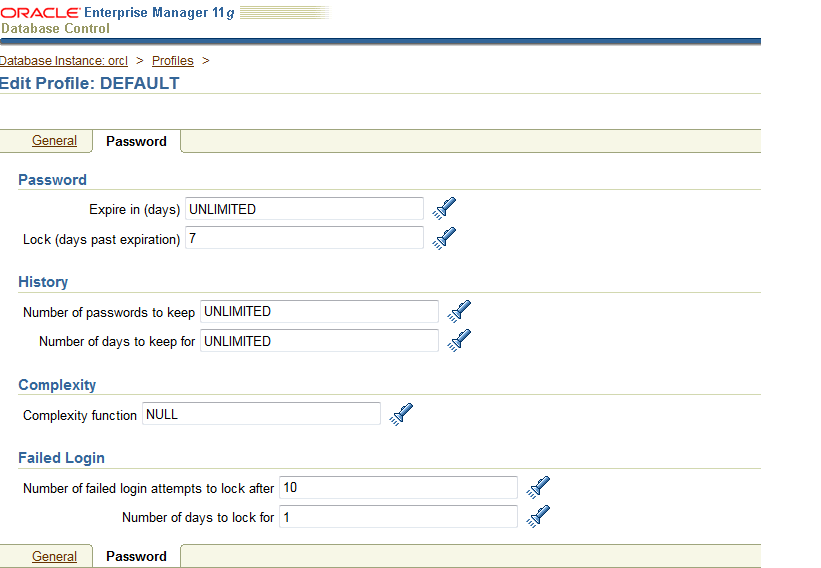
Browse to the profile section in the right database instance and select default. Set the password expiration to unlimited on the following page. You do this by:
Select DEFAULT->Edit->Password->Expire in (days): UNLIMITED.
As an alternative you can use SQL*Plus (sqlplus / as sysdba) and command:
ALTER PROFILE ”DEFAULT” LIMIT PASSWORD_LIFE_TIME UNLIMITED
At the end you may switch off the dbconsole with command
# emctl stop dbconsole
One of the last things to do, is to remove password expire from the database, otherwise you will after 6 months notice – when you least expect it – that SOA Suite is no longer running and you cannot log onto the database. You could do this step immediately after the DB install as well.
First open the port for the dbconsole web gui in the VPN (via the security groups tab in hybridfox). The port if 1158. Open a browser and try to connect to it or by seeing with ps –aef | more if it is running. Starting and stopping the DB management web gui is done with emct command. You can see all commands with:
#emctl help
If it not running, you can start the dbconsole with command:
#emctl start dbconsole
Browse to the profile section in the right database instance and select default. Set the password expiration to unlimited on the following page. You do this by:
Select DEFAULT->Edit->Password->Expire in (days): UNLIMITED.
As an alternative you can use SQL*Plus (sqlplus / as sysdba) and command:
ALTER PROFILE ”DEFAULT” LIMIT PASSWORD_LIFE_TIME UNLIMITED
At the end you may switch off the dbconsole with command# emctl stop dbconsole
part 9 - DB Creation
Database creation
with dbca
Next thing to do was to create a database with dbca. You need to be user oracle when running dbca.
It is located in the same directory /u01/app/oracle/product/11.2.0/dbhome_1/bin
Next thing to do was to create a database with dbca. You need to be user oracle when running dbca.
It is located in the same directory /u01/app/oracle/product/11.2.0/dbhome_1/bin
#./dbca
Some of the key parts in installation is to set up the
password for the created admin users like sys, sysman etc. I would strongly
recommend to set the same password for all at least for test environments.
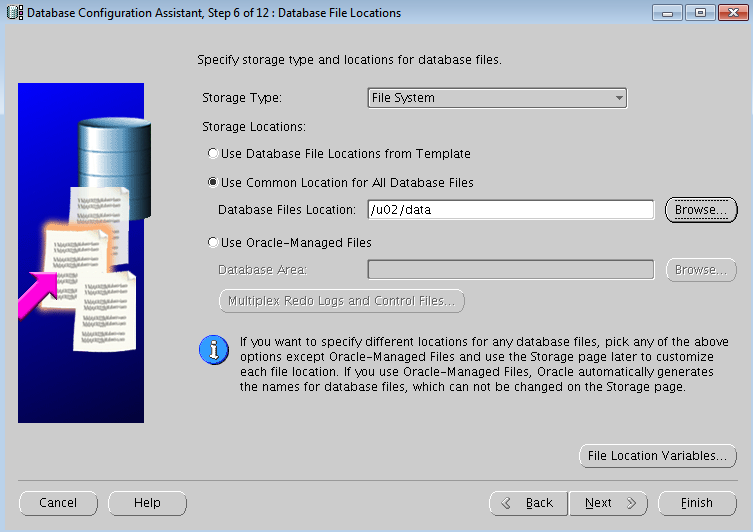
I selected to set the DB data to a different volume that I
have mounted to /u02
I also selected no flash recovery area, which in general is
a bad idea, but for a small internal test machine it saves disk. Also no
archiving, which is not good for production but ok for own small test
environment
I also installed the sample schemas as several Oracle
tutorials use them
My virtual image has
7G of memory and I set about 1G for the DB as there will be no real use for it;
your mileage may vary.
I
also selected AL32UTF8 for the character set.
And now we have DB created.
Tilaa:
Blogitekstit (Atom)