keskiviikko 10. huhtikuuta 2013

Tutorial 1. Part 5 - creating database resources

Creating database resource
Practically all composite services need to use a database. To prepare for this we need to create a database resource in Weblogic Admininstration Console. There is also scripting support via WLST (Web Logic Scripting Tool) but yours truly has never used it.

By default the console is installed at:

http://localhost:7001/console/
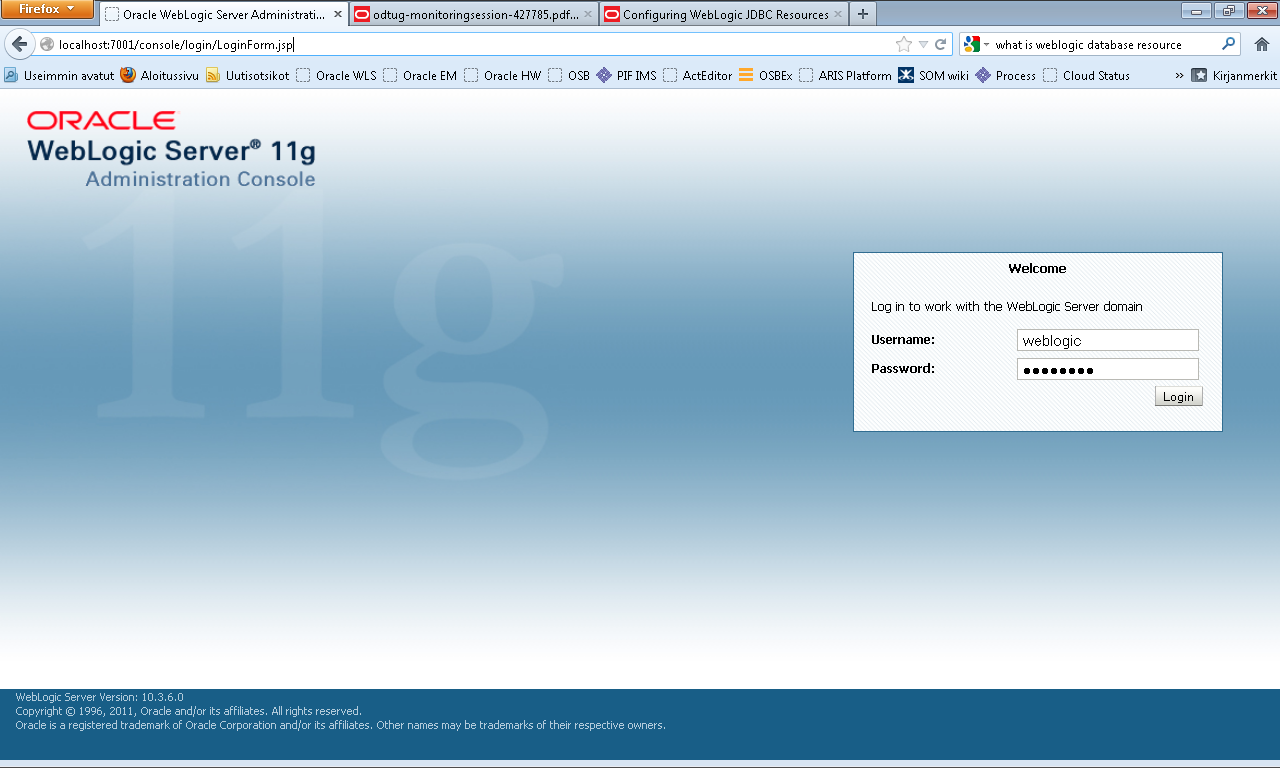
First logon may take some time as the system is deploying the management apps only when the first page fetch is received.

Main page opens that shows a generic view of your environment.
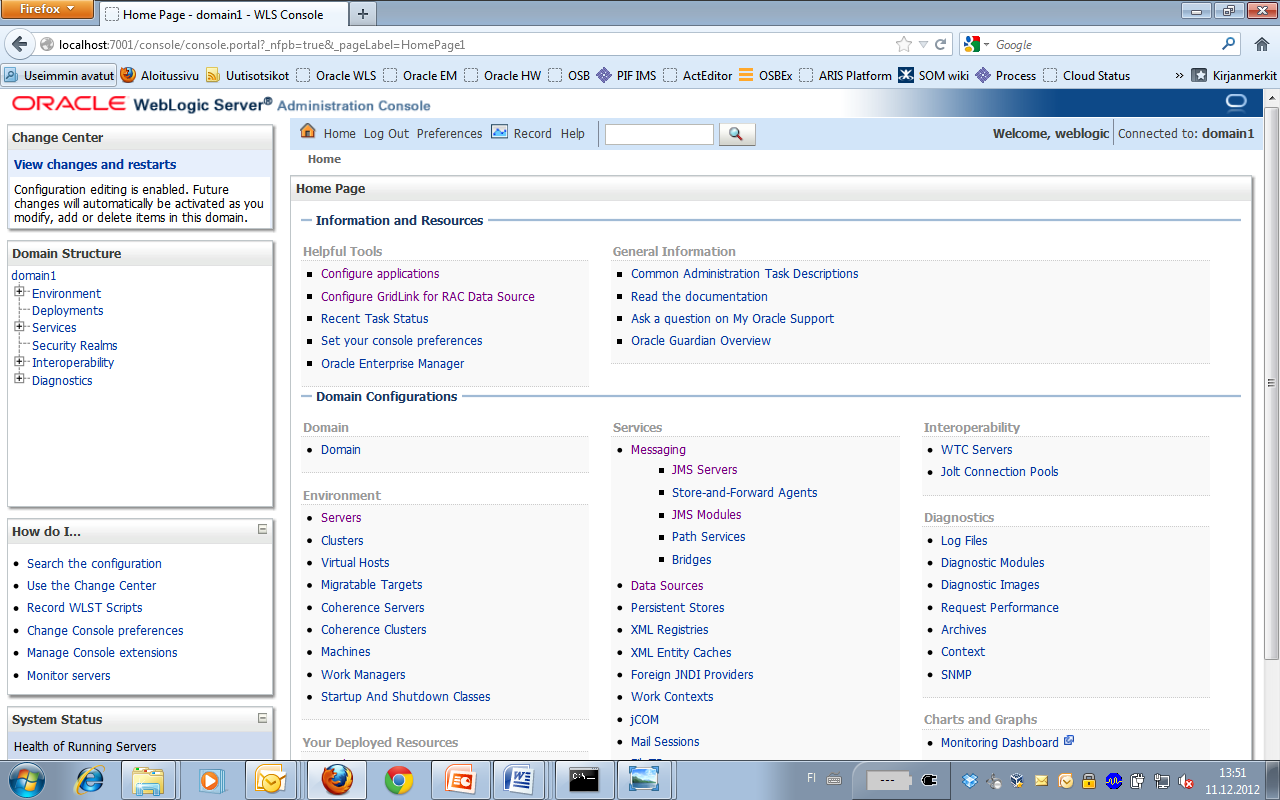
A database resource contains a set of database connections that are pooled together. This connection pool is created when the data source is created and the connections are also always created when the server starts. Applications use a JNDI name to gain access to the data source.
Defining the database resource contains four steps:
  • Defining the datasource
  •  Define the connection pool
  •  Create a DB plan (should be already done if you followed installation instructions but for different user)
  • Link data source and connection pool together
Go to Service-Data Source
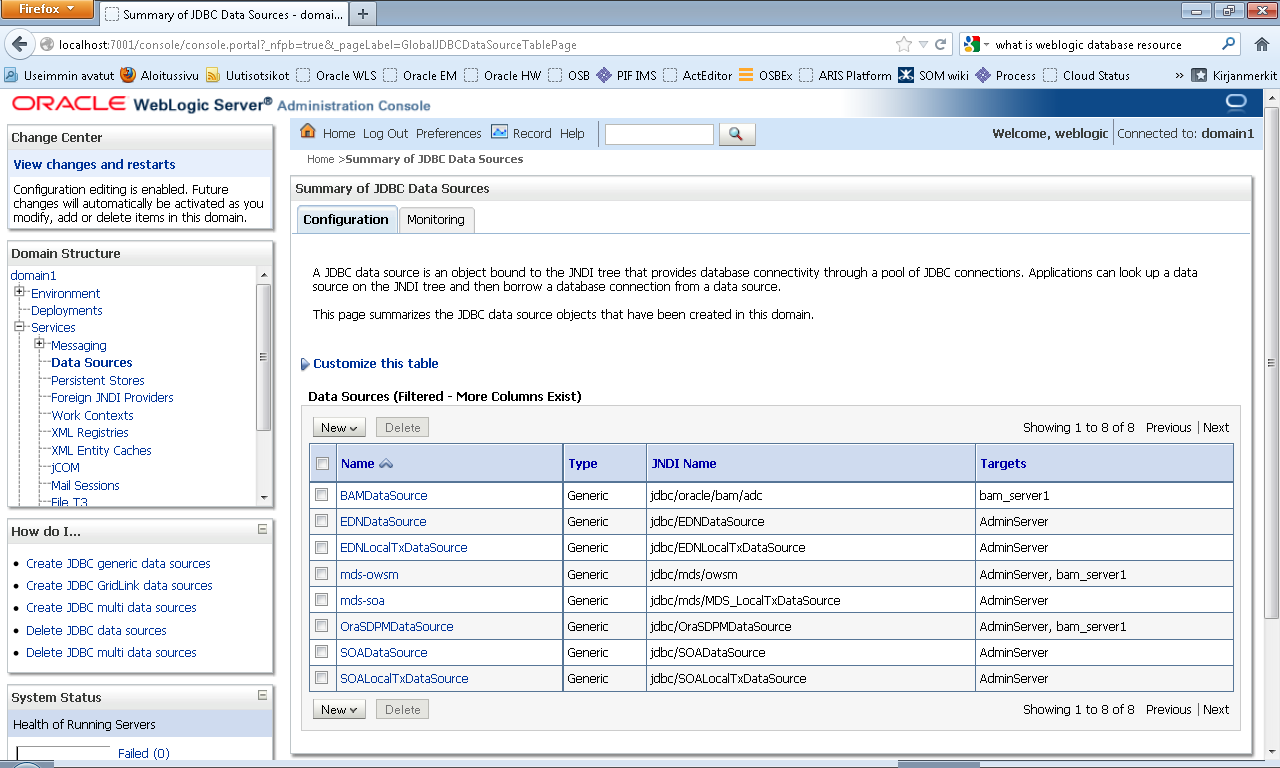

Select new->Generic Datasource (new is a button with a downarrow at end). Add name for datasource and jndi name (there is a convention that jndi names start with jdbc if they are db related). 
Press next. Select thin driver there. Press next again twice until you reach a page that asks for database name, user name etc.
On the following page test the connectivity – i.e. that you used right username and password.


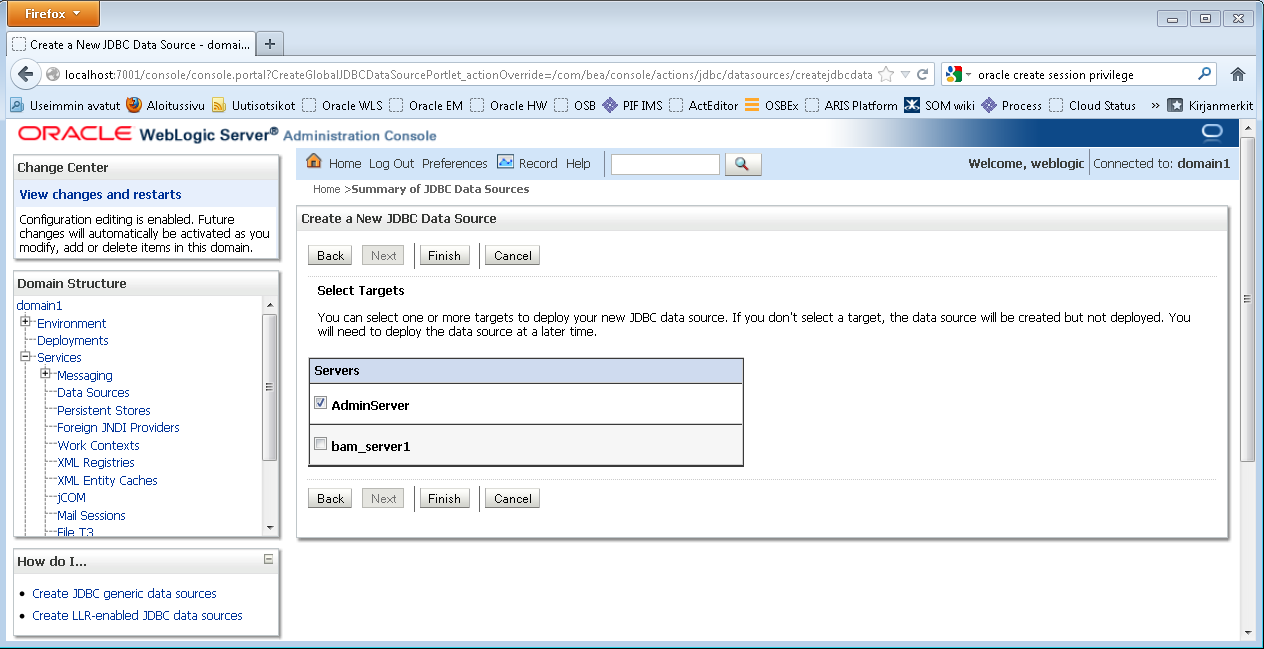
Press next. Select admin server as target. This means that admin server is the managed server creating the connections. We do not need them from back and the deployment would result in error as the bam is currently not even started. Press finish


Tutorial 1. Part 4 - creating a new user in DB for our schemas

Setup

Some common activities are normally needed after you have installed SOA Suite and start to develop a new use case: for example you might create new username in the database so that all the tables related to this development are grouped together. If you create own user, you will need to also create a database resource on the WebLogic server side that handles the connection pool and so on.

Creating new database user with SQLPLus

Before we start developing our application, let’s first create own user for this application so that all generated database tables will belong to that user.

We can do this for example with sqplus from the command line:

>Sqlplus sys as sysdba

This starts the sqplus command and tells that we want to log on as user sys and the user should assume the role of system administrator. Then Oracle prompts for the password you gave when you installed the DB needed by it (use the admin password you selected). Finally create the user with the “create user” command.

C:\Windows>sqlplus sys as sysdba

SQL*Plus: Release 11.2.0.2.0 Production on Pe Joulu 7 10

Copyright (c) 1982, 2010, Oracle. All rights reserved.

Enter password:

Connected to:

Oracle Database 11g Express Edition Release 11.2.0.2.0 -

SQL> create user simple identified by "welcome1";

User created.

SQL> grant create session to simple;

Grant succeeded.

SQL>

SQL> grant resource to simple;

Grant succeeded.

SQL>

Tutorial 1. Part 3. Starting jDeveloper and connecting to SOA Suite


Starting jDeveloper


Next start jDeveloper. First it asks you to select role. Normally you should select Default Role. In this role you can use all features of jDeveloper.

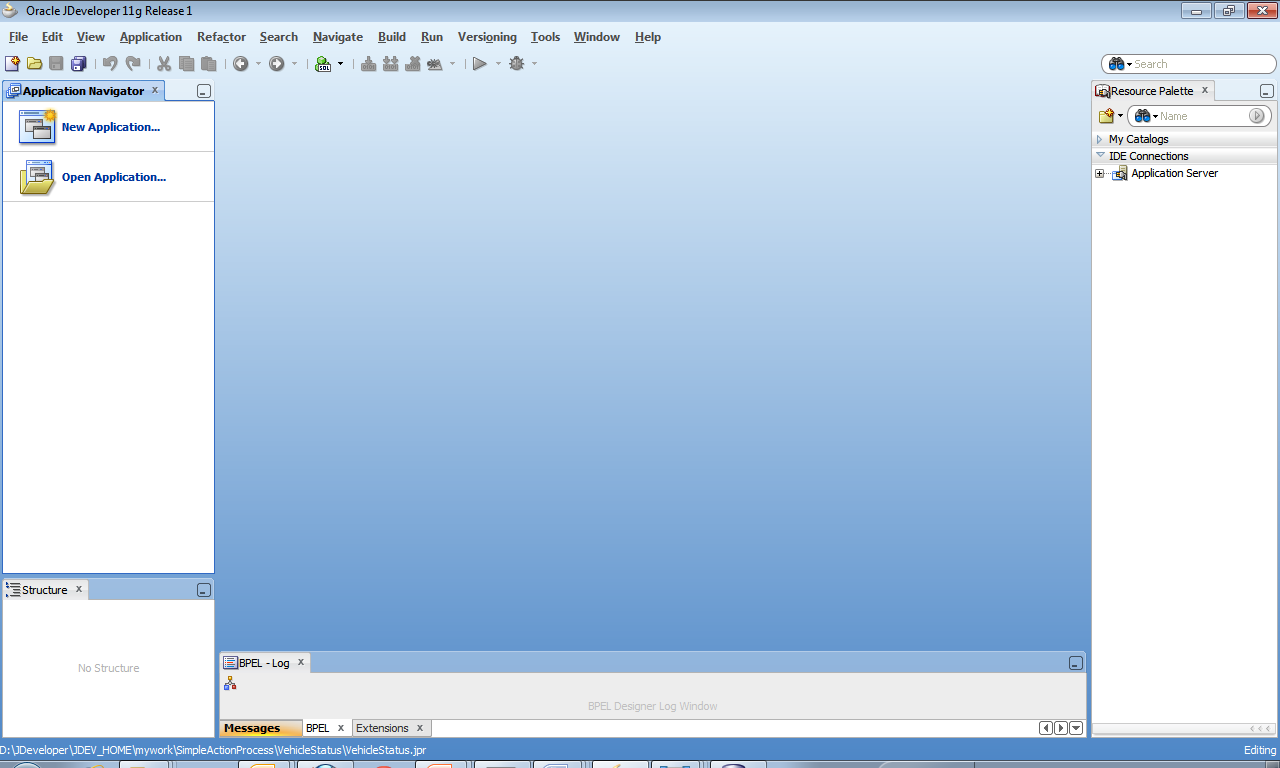
jDeveloper comes up. It may show a daily tip for you also but basically an empty workspace opens up.


Create connection to SOA suite

Before you can deploy composite services to the running SOA suite environment, you need to create connection from jDeveloper to it.

File->New->Current project technologies tab->General->Application Server connection

This starts a wizard:
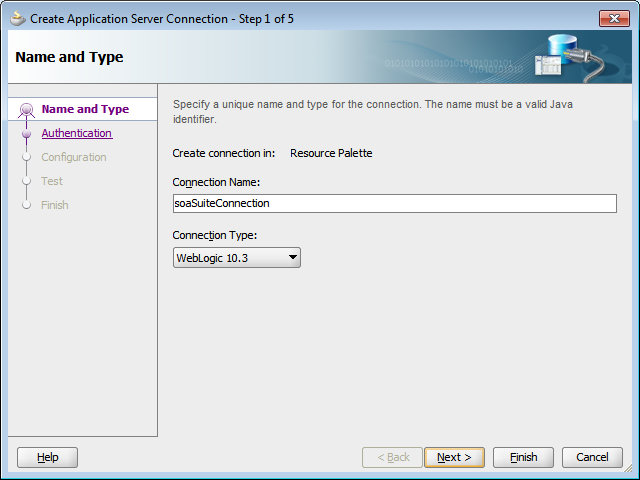
  • Give the connection a name
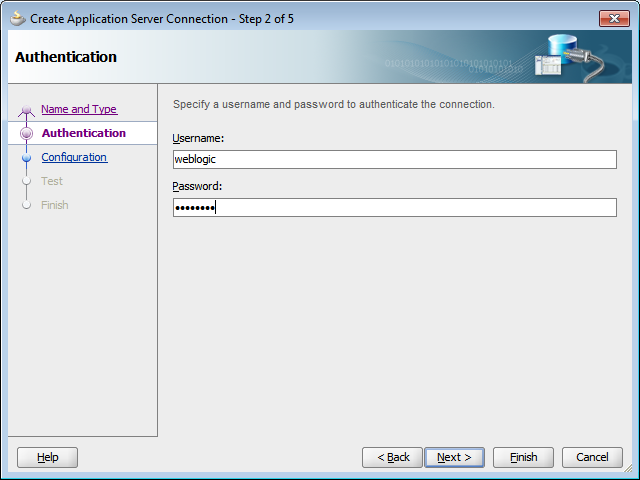
  • Set username and password
  • Give hostname, port and domain 
  • Test connection 
  • Completed, press Finish  


Tutorial 1. Part 2 - starting SOA Suite


Startup


First thing naturally to do is to startup SOA Suite. You do this simply by going to the main directory of the main domain you created and using the startWebLogic.cmd command. In my environment it goes like this:

C:\Windows>d:

D:\>cd Oracle\Middleware\home_PS5\user_projects\domains\domain1

D:\Oracle\Middleware\home_PS5\user_projects\domains\domain1>startWebLogic.cmd


If you have installed SOA Suite in development mode (recommended for stand-alone testing), this will start all soa components together. In production environments there will be two separate managed servers: AdminServer and soa_server1. We will return later to them. Both are what Oracle calls managed servers, but they have different roles.

In production the enterprise manager (EM) which is the application used for managing the SOA Suite environment is hosted on the AdminServer. All your SOA Composite Services will on the other hand get hosted on the soa_server1. Also the SOA infrastructure runs on soa_server1. In production environment it is best practice to install them to separate managed servers so you can scale them independently etc. (you typically do not need to scale the AdminServer). In development installation the AdminServer and soa_server1 gets installed together. This saves memory on developer machines. The bam_server1 (BAM is a real time dashboard showing what happens in your processes and composite applications) is installed separately. You do not need it always and the BAM is seems to consume quite a lot of resources so having it as a separately startable managed server speeds up the startup.

At the end of the startup you see that the server is in RUNNING mode. Checks also for text “SOA Platform is running and accepting requests”


<6.12.2012 21.45.50 EET> <Notice> <WebLogicServer> <BEA-000331> <Started WebLogic Admin Server "AdminServer" for domain "domain1" running in Development Mode>

<6.12.2012 21.45.50 EET> <Notice> <WebLogicServer> <BEA-000365> <Server state changed to RUNNING>

<6.12.2012 21.45.50 EET> <Notice> <WebLogicServer> <BEA-000360> <Server started in RUNNING mode>

Tutorial 1. Part 1. Introduction - Hands-on with Oracle SOA Suite 11g


Introduction

In this tutorial we develop a simple end-to-end use case with Oracle SOA Suite as a hands-on guide to help people learn the mechanics of using it.

Let’s take a simple scenario where we need to react to external events. Events are collected, some additional checks are made to filter uninteresting events or to enhance the event data and finally a corrective action is performed as an end-result.

Example use cases for this type of functionality could be:
  • A car rental company has GPS chip attached to each car and a geo-fencing solution which sends an event every time a car enters or exists home location for cars. These events are cough with the process to do a simple check whether the car has been rented out, going for maintenance or is leaving for unknown reasons.
  • A device being managed sends an event when it is over its threshold or not working correctly. For example a process monitoring application could pass events whenever a process being managed is no longer performing well.
The sample application is just for illustrative purposes, a real life application would live in a much more complex environment where the data sources for information would be existing applications available often via some type of company-wide enterprise service bus or messaging infrastructure.

Technically this is implemented so that with SOA Suite we either accept incoming requests via web services or later also have an alternate interface that is watching for files appearing in a given directory, parse the files for the attributes they contain and start a simple process. The process checks external database to see if there is a valid reason for the event. For example the device or car that sent the event could be rented out or undergoing repairs. Finally for all other events, we fetch from another data source a set of actions that are linearly processes. For flexibility we just executed external scripts where the implementation team could act their needed logic such as sending an email or starting another corrective process. Some of the parameters from the input file are given as parameters to these scripts.

Soa server sw installation
This tutorial does not cover installation. Earlier entries tell how to install on Eucalyptus on-premises cloud but there are also several good resources on the net for soa suite install on windows. You might check at least:

http://www.packtpub.com/article/installation-configuration-oracle-soa-suite-11g-1

which shows you how to install on windows and contains snapshot of every screen or you might take a look at installation videos at:

http://java.net/projects/oraclesoasuite11g/pages/Home